
Zone 1 Level 4 (EDIT GROUP\PREFERENCES)
LEVEL OVERVIEW
Here you can adjust the Space Stations working environment with access
to basic and advanced options.
Key Features
Note Priority, Screen Utilities, Interactivity, MIDI, Metronome Options.
NOTE PRIORITY
Used to determine what happens when the total Polyphony Buffer is exceeded.
Replace Nothing
Waves will not play until Buffer space is available.
Replace 1st Notes
Any new Wave will replace the 1st Wave.
Replace Last Notes
Any new Wave will replace the last Wave.
Replace Smallest
Waves will replace those with the least time remaining, unless Waves
playing are Looped
in this instance Replace 1st Note will apply.
SCREEN UTILITIES
QWERTY Keyboard
Enables/disables the on screen QWERTY Keyboard, used for Text insertion
when the PC Keyboard
is out of reach or not connected.
Screen Saver
Enables/disables the Screen Saver (Interactive Star System).
Delay Time
Screen Saver Delay Time in minutes.
Sound Bars
Enables/disables the Screen Saver Stereo Sound Bars.
INTERACTIVITY
Allows the user to modify aspects of the PC to enable smother performance
on slower machines
and any computers containing non standard hardware.
Play Whilst Load Save
PC's running Windows 95 or using slow disk drives may encounter audio
clipping when Loading/Saving. Use to disable the Sound Engine in Load/Save
Mode.
Play Whilst Editing
Used in conjunction with the Wave Effects Racks. Function not available.
Play Volume
Sets the Velocity used by the QWERTY keyboard and the Keyboard panel.
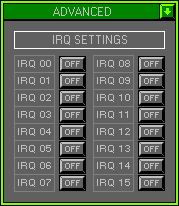
IRQ Settings
Certain types of PC hardware such as PS2 Mice, will automatically shield
interrupts. This may cause audio clipping, by shielding this IRQ the Space
Station will only acknowledge the call when the Sound Engine has finished
a cycle.
This will cause a PS2 Mouse to react slowly when Polyphony is set to
maximum.
For this reason we suggest that a serial Mouse is used instead!
Advanced
Activates the IRQ Setting Window. To shield an IRQ click to turn On/Off.
MIDI
Basic/advanced MIDI options.
Echo
Routes all incoming MIDI to the MIDI output.
Send
Routes all internally generated MIDI to the MIDI output.
This option must be enabled if you want MIDI data from the Mixers ECT
to control external devices.
Sync
Activates the Synchronizer Settings window.
SYNCHRONIZER SETTINGS
Synchronize the Space Station to external hardware, enabling LFO, Env
& Loop Mode 2 Synchronizing.
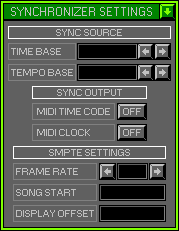
SYNC SOURCE
Determines if the Space Station should be Synchronized internally or
externally.
Time Base
Internal or External with the use of MTC. When Locking to an external
Sequencer the use of MTC is important to maintain a constant true Sync.
MTC transmits a continuous flow of Time stamps, used to define the Bar
and Beat locations.
Tempo Base
Internal or External with the use of MIDI Clock. When Locking LFO's
and Envelopes to an external Sequencer,
using MIDI Clock for the Tempo Base will give better than usual results.
This is due to the Space Station using its own internal Clock to recalculate
any anomalies in the MIDI Clock Data.
Remember: Set the Space Stations Tempo to match the Tempo of the external Sequencer. Tempo changes are only possible with the use of the Master Track.
SYNC OUTPUT
Transmits Synchronizing Data to other devices, the Space Station becomes
the Master, and other's the Slaves.
This is vital if multiple Space Station's are to be Synced together
without the use of a Sequencer.
MIDI Time Code
Activates/deactivates MTC transmission.
MIDI Clock
Activates/deactivates MIDI Clock transmission.
SMPTE SETTINGS
Calculates the exact Frame rate needed to transmit or receive MTC.
Frame Rate
Frames per second, used by Master only. Automatically calculated by
Slave.
Song Start
Defines the Song Start Time, left\right click to Up\Down the Values.
Display Offset
The SMPTE Display Window can start from a different Value, than the
actual Time Value.
Used in conjunction with the Song Start Value.
REMOTE
Activates the Remote Control Window.
REMOTE CONTROL
All Song Controls Output MIDI Note On/Off Values. Some Sequencer software
such as Cubass for the Atari,
use these Values to activate their equivalent's.
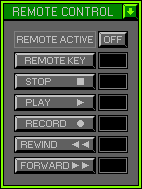
Remote Active
Switch On/Off to activate or deactivate the remote control settings.
Remote Key
Transmitted first to identify Remote access. Click to activate, select
the appropriate Key using the Keyboard panel as normal.
Stop
Note used by the Stop Button, select Key as normal.
Play
Note used by the Play Button, select Key as normal.
Record
Note used by the Record Button, select Key as normal.
Rewind
Note used by the Rewind Button, select Key as normal.
Forward
Note used by the Forward Button, select Key as normal.
Remember: MIDI Send must be switched on for the Remote to Transmit,
and all of the Key Values must match those of the software you wish
to control.
METRONOME OPTIONS
Set up the MIDI an PC Clock\Click.
Metronome
Enables\disables the Metronome and MIDI Clock.
Precount
Enables\disables the Sequencer pre-record count in. Function not available.
Bars
Sets the amount of Bars used by the Sequencer Precount.
PC Click
Enables\disables the PC Click, used in conjunction with the Keyboard
Flip Screen.
MIDI Click
Enables\disables the MIDI Click, used in conjunction with the Keyboard
Flip Screen. The MIDI click allows an external devices to become the Metronome
Click.
Channel
Sets the Channel that the MIDI Click is sent on.
High Note
Sets the Note used for the first Beat of the MIDI Click.
High Velocity
Sets the Velocity used by the High Note.
Low Note
Sets the Note used for the remaining Beats of the MIDI Click.
Low Velocity
Sets the Velocity used by the Low Note.
OPTIONS SCREEN
Displays available Options.
Hold
Stores all current settings to disk, use with Fetch for undo.
Fetch
Reverts to previously Held settings.
Save + Exit
Saves the settings to the pref.dat and Exits to Zone 1 Level 1 Edit
Group\Bank Assigner.
Cancel
Reverts to previous settings and Exits to previous Zone\Level..