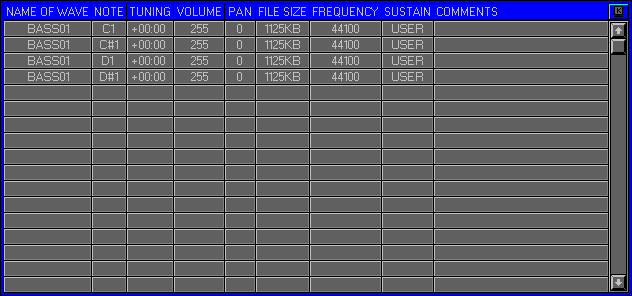
Zone 2, Level 1 (EDIT BANK\WAVE ASSIGNER)
LEVEL OVERVIEW
Here you can Load/Assign Waves and Save them as Banks. Adjustments
can be made to basic attributes with the use of data basing tools. Waves
can be moved around and across MIDI Channels without amending Attributes.
Key Features
Bank Loading\Clearing, Wave Loading\Clearing\Shuffling, Note Assigning,
Tuning, Volume, Pan, Sustain, File Size, Frequency Display, Comments.
LOAD
Click to activate drop down list.
Load Bank
Activates the Load Bank window (see Load/Save Bank and Bank Files below).
Load Wave
Activates the Load Wave window (see Load Waves and Wave Files below).
Clear Bank
Returns the Bank to its default state, removing all user elements.
Clear Wave
Removes the selected Wave.
Clear Wave Mode
Activates Clear Wave Mode, follow on screen prompts.
Shuffle Mode
Activates Shuffle Mode (see below).
SAVE
Click to activate drop down list.
Save Bank
Activates the Save Bank window (see Load/Save and Bank Files below).
Save Wave
Activates the Save Wave window (see Load/Save and Wave Files below).
NAME OF WAVE
Displays the Wave File Name. Double thickness Names indicate Multilayered
Keys,
(see Zone 2 Level 2 Edit Bank\Key Mapping).
NOTE
Displays Note/Key the Wave is Assigned to. Left click to activate,
right click on Keyboard Keys to select new position. To move across Banks,
change MIDI Channel before selecting new position. All Wave Attributes
will be moved except the LFO Shapes and Maps, (see Zone 2 Level 7 Edit
Bank\LFO Assigner).
Remember: Multilayered Keys cannot be moved (see Shuffle Mode below).
TUNING
Divided into semitones and cents. Use left and right clicks to Up/Down
Values,
click opposite mouse button to activate Turbo Mode.
VOLUME
Adjustable from 0-650 Use left/right clicks and Turbo to toggle.
Alternatively click on the column heading to select all entries.
Column heading changes colour to indicate current Mode.
Grey - Normal
Independent control of Wave volumes.
Green - Proportional
All Wave Volumes increase or decrease Proportionally.
Red - Global
All Wave Volumes increase or decrease to match that of the selected.
PAN
Adjustable left/right for each Wave. Adjust as with Volume.
FILE SIZE
Wave size in bytes.
FREQUENCY
Frequency of Wave (44K, 22K or 11K).
SUSTAIN
Defines how the Wave should react after the Key is released.
On
Stops at Wave end unless Looping (see Zone 2 Level 4 Edit Bank\Loop
Mode 1
and Zone 2 Level 6 Edit bank\Loop Mode 2).
Off
Wave stops on Key release.
User
Controlled by an Amplitude Envelope, (see Zone 2 Level 3 Edit Bank\Envelope
Generator).
COMMENTS
Left click to activate Text insertion, Return to deactivate.
VIEWING ORDER
Click on Heading bar Switch to change Modes.
Key Mode (K)
Waves displayed in Key order, C-2 to G8.
Alpha Mode (A)
Waves displayed in Alpha/Numeric order.
SCROLL BAR
Buttons
Allow for manipulating up and down the Wave List, click to scroll.
Bar
Bar size is proportion to Wave List, click\drag to scroll.
SHUFFLE MODE
Used to reorganise Waves between two Keys to another location.
All spaces will be removed but the Wave Attributes will remain intact.
Remember: Waves and Key Mappings can be Shuffled to different Key Values, Wave Pitches will not be amended.
Shuffle Range
The Key Range selected for Shuffling and the new location.
Lowest Key
Auto activated on entering mode. Defines the Lowest Key within the
Shuffle Range.
Right click on Keyboard Keys to select new Key Value. Click To reactivate.
Highest Key
Auto activated on Lowest Key selection. Defines the Highest Key within
the Shuffle Range.
Right click to select as with Lowest Key. Click to reactivate.
Shuffle Key
Auto activated on Highest Key selection. Defines the Key Waves are
Shuffled to. Right click to select as with Lowest Key.
To Shuffle across Banks change MIDI Channel before selecting new Key.
Click to reactivate.
Remember: All Wave Attributes will be Shuffled across Banks except the
LFO Shapes and Maps
(see Zone 2 Level 7 Edit Bank\LFO Assigner).
Shuffle
Activates the Shuffle Function.
Finish Mode
Terminates Shuffle Mode.
OPTIONS SCREEN
Gives access to Level Jump Gates.
Key Mapping
Activates Zone 2 Level 2 Edit Bank\Key Mapping. Used for Mapping and
Layering Waves
across the Keyboard with Pitch correction.
Envelope
Activates Zone 2 Level 3 Edit Bank\Envelope Generator. Modifies Wave
Amplitude, Pan and Pitch Values over Time.
Loop
Activates Zone 2 Level 4 Edit Bank\Loop Mode 1. Used to Loop Waves
around
User definable points. Access to Loop Modes.
LFO
Activates Zone 2 Level 7 Edit Bank\LFO Assigner. Used for Modulating
Wave Volume,
Pan and Pitch with Low Frequency Oscillators.
LOAD/SAVE BANK
See Load\Save Desktop (no special functions).
BANK FILES
Contain all Data and Settings from Zones 2 plus the Channel Data from
Zone 1.
There are two different types of Bank File, (see Bank Files
Zone 1 Level 1).
LOAD WAVE
Waves from different Directories and Drives, can be added to a Selected
File List for Loading.
Waves will be Automatically Assigned from the selected Key.
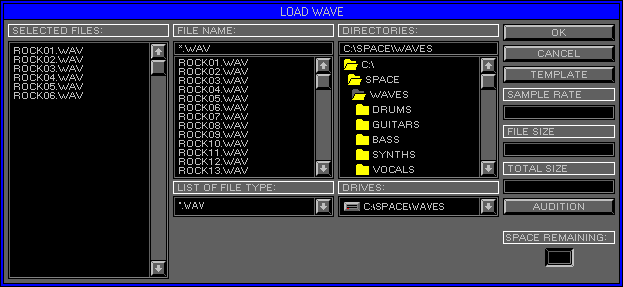
SELECTED FILES
Displays the List of Files to Load. Right click on File Name to remove
from List.
List Scroll
Use the Up/Down Arrows or Scroll Bar to view File List.
Scroll Bar
The size of the Bar is proportional to the displayed File List.
FILE NAME
Displays the currently selected File Name and Type. Left click on Wave
Name in File List to select.
Click OK or use Quick Key "Return" to Load to Selected Key.
FILE LIST
Displays the List of File Names to select from. Three Modes are available
for adding Waves to the Selected File List.
Mode 1
Right click on any File Name, add's all Waves in directory to Selected
File List.
Mode 2
Left click on File Name to select, click again to add to Selected File
List.
Mode 3
Left click on File Name to select , right click on lower File Name
to add all Waves
between left/right clicks to Selected File List.
List Scroll
Use the Up/Down Arrows or Scroll Bar to view File List.
Scroll Bar
The size of the Bar is proportional to the displayed File List.
LIST OF FILE TYPE
Displays the current File Type to Load. Click Arrow to activate/deactivate
File Type List.
Click on Type to select (see Wave Files below).
DIRECTORIES
Displays the currently selected Drive and Directory.
DIRECTORY LIST
Display the available Directories. Double click on the Folders to open.
List Scroll
Use the Up/Down Arrows or Scroll Bar to view Directory List.
Scroll Bar
The size of the Bar is proportional to the displayed Directory List.
DRIVES
Displays the currently selected Drive, click to view Drive List, click
to select.
OK
Loads all Selected Files. Click switch or use Quick Key "Enter".
CANCEL
Cancel Mode 1 & 3, keeping Selected List up to that point. Exit
Load Window and returns to the Wave Assigner.
Click or use Quick Key "Back Space".
TEMPLATE
Active when a Wave is Selected, the Template Function copies all Attributes
from the Selected Wave to those Loading. Click to enable/disable.
Remember: The Selected Wave is displayed in the Active Screen. If the Selected Wave is on a different MIDI Channel, the LFO Shapes/Maps will not be copied.
SAMPLE TYPE
Displays Wave Information.
FILE SIZE
Displays number of bytes required to load Selected File.
TOTAL SIZE
Displays number of bytes required to load Selected File List.
AUDITION
Plays Selected File Name.
SPACE REMAINING
Displays the total amount of Keys remaining after and including the
Selected.
WAVE FILES
Wave Files (*.WAV) are the standard PC Audio File Type.
There are over 4000 Waves on the CD under the Wave directory.