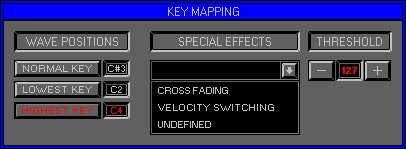
Zone 2 Level 2 (EDIT BANK\KEY MAPPING)
LEVEL OVERVIEW
Here you can Map Waves across a Range of Keys, automatically recalculating
Pitch. Mapping creates Ghost Waves, Keyboard LED's yellow. Key Mappings
can be Multi Layered allowing for a total of 256 Waves per Bank.
Key Features
Wave Positions, Special Effects, Threshold
WAVE POSITIONS
Define the Selected Wave and Range for Key Mapping.
Normal Key
Defines the currently selected Wave/Key to Map. Click to select a new
Wave/Key from the Keyboard Panel as usual.
Remember: Only Keys Assigned with Waves can be selected. Ghosts Waves are Mapped to Keys, not Assigned.
Lowest Key
Defines the Lowest point within the Key Mapping Range for the selected
Wave. Click to select a new Key from the Keyboard Panel as usual. Ghost
Waves will be Mapped down to this point and their Pitch automatically corrected.
Highest Key
Defines the Highest point within the Key Mapping Range for the selected
Wave. Click to select a new Key from the Keyboard Panel as usual. Ghost
Waves will be Mapped up to this point and their Pitch automatically corrected.
Ghost Waves
Unlike any other Sampler on the market, Ghost Waves within the Space
Station can be controlled individually. All Zones/Levels used by Waves
can be utilised, but Ghosts cannot be separated form their originator.
Remember: Clearing a Ghost Wave will remove Key Mappings from that Range.
SPECIAL EFFECTS
Create Multi Layered Key Mappings. Select Special Effect before creating
Ghost Waves.
Click Arrow and select Effect from List.
Undefined
No Special Effect used.
Cross Fading
Enables overlapping of separate Key Mappings for Wave blending. Indicated
by double thickness LED's the Cross Fade area fades one Key Mapping into
the next. Keys within the Cross Fade Range will use two Notes Polyphony.
Remember: Only Ghost Waves can be within the Cross Fade Range.
Velocity Switching
Assigns two Waves to the same Key. Upper and Lower Layers indicated
by Double thickness LED's.
Both Waves can be played simultaneously using two Note Polyphony,
or individually depending on the Threshold Value (see below).
Click on Arrow to drop down list, select Velocity Switching, Normal
Key is Auto selected,
select new Wave/Key to Assign the Upper Wave.
Remember: The current Normal Wave/Key will become the Upper Wave, the new Normal Wave/Key will be the Lower.
THRESHOLD
Used only for Velocity Switching Waves, the Threshold Value determines
the point at which Lower and Upper Waves are separated. Each Key Mapping
has one Threshold Value.
Threshold (0)
Lower and Upper Waves play simultaneously.
Threshold (greater than 0)
Velocity Values less than or equal to the Threshold Value play the
Lower Wave.
Velocity Values greater than the Threshold Value play the Upper Wave.
OPTIONS SCREEN
Displays available Options.
Hold
Stores all current settings to disk, use with Fetch for undo.
Fetch
Reverts to previously Held settings.
Keep And Exit
Keeps all Key Mappings and Exits to Zone 2 Level 1 Edit Bank\Wave Assigner.
Cancel
Reverts to previous settings and Exits to previous Zone\Level.