ENVELOPE GENERATOR
Zone 2, Level 3 (EDIT BANK\ENVELOPE GENERATOR)
LEVEL OVERVIEW
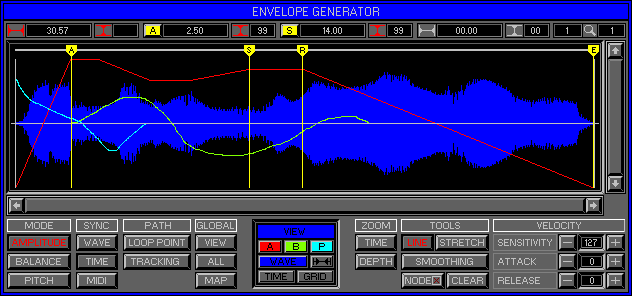
Here you can Generate Envelope Shapes and Attach them to Amplitude,
Balance and Pitch.
The Space Station has unrivalled Envelope Attributes capable of simulating
any type of Shape.
Shapes can be Modelled using conventional methods (ADSR) but unlimited
Point creation is possible.
Envelope Shapes, Wave and play position can be Viewed simultaneously.
User definable Time Display plus Grid for accurate Point creation.
Envelope Shape Modelling during audio play back using Free Hand or
Node Mode.
MIDI controllable Fixed Pointers for variable Envelope Attack\Release.
Envelope Shapes Sync to Time (Conventional) Wave or MIDI. Shapes can
be Loaded\Saved.
Key Features
Value Displays, Play Position Display, Fixed Pointers, Envelope Display,
Wave Display, Shape Modelling, Envelope Mode, Syncing, Path control, Global
control, View control, Zoom, Modelling Tools, Velocity control, Load\Save.
LOAD
Click to activate drop down list.
Load Envelope
Activates the Load Envelope window (see Load/Save and Envelope Files
below).
SAVE
Click to activate drop down list.
Save Envelope
Activates the Save Envelope window (see Load/Save and Envelope Files
below).
VALUE DISPLAYS
Display Time and Depth Values, Icons Colour Coded for Envelope Mode.
Blank
Mode not Active (see Mode below).
RED
Amplitude Mode.
Green
Balance Mode.
Cyan
Pitch Mode.
Envelope Size (Top Left)
Total Envelope Time and Depth Values.
Time
Total Envelope Time, right\left click to Up\Down the Value, plus Turbo.
Use this method to stretch Envelope Shapes without increasing Memory size.
Depth
Adjustable for Pitch only (4 to 32 Semi Tones), right\left click to
Up\Down Value.
Fixed Pointers (1+2)
User selectable Displays, not adjustable (see Fixed Pointers below).
Display 1
Currently selected Fixed Pointer, Time and Depth Value.
Display 2
Last selected Fixed Pointer, Time and Depth Value.
Display Switch
Right\Left click to select Fixed Pointer or Node (see Node Mode below).
Switch Icons change to Display Pointer.
A
Attack Point Time and Depth Values.
L
Loop Point Time and Depth Values.
S
Sustain Point Time and Depth Values.
R
Release Point Time and Depth Values.
E
End Point Time and Depth Values.
Node
Selected Node Time and Depth Values (Node Mode only).
Mouse Pointer
Current Time and Depth Values of the Mouse Pointer.
Zoom
Current Time and Depth Zoom Ratios (see Zoom below)
Time (Left)
Right\Left click to Time Zoom In\Out from Envelope Start.
Depth (Right)
Right\Left click to Depth Zoom In\Out from Envelope Base Line (see
below).
ENVELOPE DISPLAY
Displays the currently selected Wave and Envelope Shape for Modelling
(see Mode, View , Modelling and Tools below).
Location Bar
Displays current Shape Playback Location.
Fixed Pointer Bar
Used for Creating and Moving Fixed Pointers (A, L, S ,R and E).
Fixed Pointers
Space Station Fixed Pointers are not like conventional Envelope Points
(ADSR).
Fixed Pointers are Virtual Marks along the Modelled Shape Used to control
Envelope Playback. Moving Fixed Pointers adjusts the Time position without
Modelling the Envelope Shape. Left click\drag Pointer to Move.
Attack Point
Sets the Maximum Virtual Attack Time for MIDI Control. Using MIDI Controllers
and Velocity (see velocity below),
the Time between Envelope Start and Attack Point can be varied (see
Zone 1 Level 4 Controller Implementation).
Loop Point
Special Fixed Pointer Used with Sustain for Envelope Looping (see Path
below).
Sustain Point
Prevents the Envelope Shape playing beyond this Point until MIDI Key
Off. Receiving Key Off before reaching the Sustain Point forces Shape playback
to the Sustain Values (see Path below).
Release Point
Sets the Maximum Virtual Release Time for MIDI Control. Using MIDI
Controllers and Velocity (see velocity below) the Time between Envelope
Release and End Points can be varied (see Zone 1 Level 4 Controller Implementation).
End Point
Sets the Envelope Termination Time (not deletable). Move this Point
to increase or decrease
the Envelope Shape resolution and Memory used.
Creating
Right click on Fixed Pointer Bar to Create Sustain Point,
click again left or right of Sustain to Create Attack\Release Points,
for Loop Points (see Path below).
Deleting
Right click on Pointer to Delete.
Remember: Deleting the Sustain Point will remove all Fixed Pointers.
Shape Display
All Generated Envelopes can be Displayed simultaneously with the selected
Wave and a Time\Depth Grid (see View below). Only the active Envelope Shape
can be Modelled (see Mode and Tools below).
Graph
Two Vertical Grey Lines are used to Display the Y Axis Envelope Depth.
One Horizontal Grey Line Displays the X Axis Envelope Time.
Remember: The X Axis is always Plotted at Y=0 (Base Line).
Scroll Bars
Used to Manoeuvre around Envelope Shapes.
Time
Used to Manoeuvre Up\Down Envelope Time. Bar size proportional to Displayed
Envelope.
Click Left\Right Arrows or click\drag Scroll Bar to move.
Depth
Used to Manoeuvre Up\Down Envelope Depth. Bar size proportional to
Displayed Envelope.
Click Left\Right Arrows or click\drag Scroll Bar to move.
MODE
Three Envelope Types can be Generated and selected using the Mode Switches.
Each Switch is Colour Coded and has three operating Positions.
Position 1
Switch Out and Grey. Envelope not Generated. Left Click to Generate.
Position 2
Switch In and Coloured. Envelope Generated and selected, right click
to Delete.
Position 3
Switch Out and Coloured. Envelope Generated but not selected, click
to select.
Red
Amplitude Envelope Type 1. Wave Volume over Time (see Amplitude below).
Green
Balance Envelope Type 2. Wave position within the Stereo Image. (see
Balance below).
Cyan
Pitch Envelope Type 3. Wave Pitch over Time (see Pitch below).
Amplitude
Generates a basic Amplitude Envelope Shape for Modelling (see Tools
below). Due to the nature of Amplitude control (Values of 0-100), graphical
representation and application of this Envelope Type differs.
Graph
X Axis Plotted along the bottom (Y=0) Base Line.
Y Axis Amplitude Depth (Wave Volume).
Base Line
Shapes that Touch the Base Line Terminate Wave Playback on the Point
of collision.
Designed for Key On\Off Envelope Shape Generation.
Key On\Off Envelopes
Acoustic Instruments fade naturally longer when a note is held than
if the note is released.
Modelling Amplitude Shapes to Base Line after a natural fade creates
a Key On Envelope.
Model a second Shape within the same Envelope after the first Shape
Base Lined for Key Off Envelopes.
Remember: Place the Sustain Point within the second Shape (see Fixed Pointers above and Path below).
Balance
Generates a basic Balance Envelope Shape for Modelling (see Tools below).
Due to the nature of Balance control (Values of R-L),
graphical representation and application are similar to Pitch Envelopes.
Graph
X Axis Plotted along the centre (Y=0) Base Line.
Y Axis Stereo Image Position.
Wave Right Output
Shapes Above the Base Line.
Wave Left Output
Shapes Below the Base Line.
Base Line
Defines the centre of the Stereo Image.
Stereo Waves
Fade between the Left\Right Outputs, they will not swap sides.
Remember: Pan Values will offset the Balance Envelope (see Zone 2 Level 1 Edit Bank\Wave Assigner and Zone 5 Level 1 Mixer\Main Mixer).
Pitch
Generates a basic Pitch Envelope Shape for Modelling (see Tools below).
Due to the nature of Pitch control (Values of + or -) graphical representation
and application are similar to Balance Envelopes.
Graph
X Axis Plotted along the centre (Y=0) Base Line.
Y Axis Pitch Depth (Wave Pitch).
Wave Pitch +
Shapes Above the Base Line.
Wave Pitch -
Shapes Below the Base Line.
Base Line
Wave Pitch unchanged.
SYNC
Conventional Envelopes only Sync to Time, limiting their applications.
The Space Station has Three different Syncing methods each with its
own unique qualities.
Wave
Envelope Shape Sync's to Wave duration, increasing\decreasing Wave
Pitch varies Envelope Speed.
When Syncing to Wave, modifying Envelope Size and Fixed Pointer Positions
is not possible.
Fixed Pointers
Display Wave Points that effect Envelope Playback.
S
Displays the Loop End Point (see Zone 2 Level 4 Edit Bank\Loop Mode
1).
L
Displays the Loop Start Point (see Zone 2 Level 4 Edit Bank\Loop Mode
1).
E
Displays the Wave and Envelope Shape End Point.
Remember: Amplitude Envelopes terminate Wave playback at End Point.
Time
Envelope Shape Sync's to Time as with standard conventions,
modifications to Wave Attributes using this Syncing method commence
at Envelope Shape Time,
irrespective of Wave Pitch and duration.
MIDI
Envelope Shape Sync's to MIDI Clock, increasing\decreasing Temp varies
Envelope Speed for Arpeggio effects.
PATH
Defines fundamental characteristics of the Sustain Point.
Loop Point
Creates and Deletes Fixed Pointer Loop, used in conjunction with the
Sustain Point for Envelope Shape Looping. Envelope Shape Playback no longer
stops at the Sustain Point but returns to the Loop Point and continues.
Tracking
Controls how the Envelope Shape should respond after receiving MIDI
Note Off.
Tracking Off
Receiving MIDI Note Off forces the Envelope Play Location to the Sustain
Point,
Tracking all Envelope Shape Values there after.
Tracking On
Tracking functions differently on Amplitude Envelopes than Balance
and Pitch.
Amplitude Tracking
Receiving MIDI Note Off forces the Envelope Play Location to the Sustain
Point but keeps the current Depth Value,
any differences between the current Depth and Sustain Depth becomes
the Tracking Offset.
Shape Tracking continues there after using the Offset to define the
actual Depth Value.
Balance\Pitch Tracking
Receiving MIDI Note Off has no effect on the Envelope Play Location.
GLOBAL
Used for Viewing Envelope Shapes\Types and Copying to Other Waves.
View
Views all Waves with identical Envelope Shapes\Types to the selected
Wave,
Click\Hold to View. Keyboard LED's split into three Colours to identify
which Envelope Shapes\Types
are used by other Waves within the current Bank.
Red
Amplitude, Keys with Red LED's use the same Envelope Shape as the selected
Wave for Amplitude controlling.
Green
Balance, Keys with Green LED's use the same Envelope Shape as the selected
Wave for Balance controlling.
Cyan
Pitch, Keys with Cyan LED's use the same Envelope Shape as the selected
Wave for Pitch controlling.
All
Copies all Envelope Shapes\Types of the selected Wave to all Waves
within the Bank. Results displayed in the Status Screen.
Map
Copies all Envelope Shapes\Types of the selected Wave, to all Waves
Mapped to the selected Wave.
Results displayed in the Status Screen.
VIEW
Multi layered panel used for setting the Envelope Displays.
A
Enables/disables Amplitude Envelope Displaying.
B
Enables/disables Balance Envelope Displaying.
P
Enables/disables Pitch Envelope Displaying.
Wave
Enables/disables Wave Displaying.
Wave Icon
Enables/disables Wave Loop Displaying.
Time
Activates the Time Scale Panel (see below).
Grid
Activates the Grid Setup Panel (see below).
TIME SCALE
Time Value Displays and Grid scaling.
Sec
Seconds.
Sps
Samples.
Byt
Bytes.
SMPTE
24, 25 and 30 Frames per second.
MIDI
Bars and Beats.
Exit
Exits Time Scale to View.
GRID SETUP
Sets the Envelope Display Time and Depth Grid.
Time
Activates\deactivates the Time Grid.
1 - 4
Activate the four possible Grid resolutions for each Time Scale.
Sec
Seconds, 1/4 Seconds, 1/10 Seconds and 1/20 Seconds.
Sps
1000 Samples, 250 Samples, 100 Samples and 10 Samples.
Byt
1000 Bytes, 250 Bytes, 100 Bytes and 10 Bytes.
SMPTE 24 & 30 Frames
Seconds, 2 Frames, 1 Frame and ½ Frame.
SMPTE 25 Frames
Seconds, 5 Frames, 1 Frame and ½ Frame.
MIDI
Beat, 1/8 Beat, 1/16 Beat and 1/32 Beat.
Depth
Activates\deactivates the Depth Grid.
1 - 4
Activate the four possible Grid resolutions for each Envelope Mode.
Amplitude and Balance
½, 1/4, 1/8 and 1/16
Pitch
Semi-tones, ½ Semi-tones, 1/4 Semi-tones and 1/8 Semi-tones.
Snap
Enables the mouse pointer to lock to Grid points only.
ZOOM
Activates Mouse Pointer Time and Depth Zoom Tools.
Time
Activates\deactivates the Time Zoom Tool, right\left click to Zoom
In\Out.
Depth
Activates\deactivates the Depth Zoom Tool, right\left click to Zoom
In\Out.
Remember: Both Zoom Tools can operate simultaneously.
MODELLING
Shape Modelling can be achieved using various Tools within one of two
Modes.
Free Hand Mode (Default)
Modelling with the Mouse Pointer.
Node Mode
Up to 100 Nodes can be placed at points within the Shape and used to
Model parts
between the selected Node and Nodes immediately to the left\right.
TOOLS
Used for Modelling techniques, some Tools work differently within each
Mode.
Line Draw (Default)
Used for Shape Drawing, Functions differently for each Mode.
Free Hand Mode
Mouse Pointer becomes a Cross Hair, Left click\drag to redraw Envelope
Shape.
Node Mode
Mouse Pointer becomes a Hand when over a Node, Right click along Shape
Time to Create Node, left click\drag Node to Rubber Band all Shape parts
between the selected Node and Nodes immediately to the left\right. Right
click Node to Delete.
Stretch
Used to Shrink or Expand Shapes, Functions differently for each Mode.
Free Hand Mode
Mouse Pointer becomes a Cross Arrow. Left click\drag, left\right to
Shrink or Expand Envelope Shape Time from the Pointer Position. Right click\drag
up\down to Shrink or Expand Envelope Shape Depth.
Node Mode
Function not available.
Smoothing
Automatically Smooths Shape Edges. Continuous use will Flat
Line the Shape.
Node
Switches between Node Mode and Free Hand Mode.
Switch Up
Free Hand Mode.
Switch Down
Node Mode.
Clear
Removes all User Nodes and Fixed Pointers.
VELOCITY
Defines what effect if any MIDI Velocity produces.
Sensitivity
Controls the Level of Amplitude variation from Key Dynamics.
Value
Greater Values result in more Volume variation, click +\- to up\down
the Value.
Attack
Controls the Level of all Fixed Pointer Attack variation from Key Dynamics.
Value (0)
No effect.
Value (+)
Greater Velocities result in faster Attack Times.
Value (-)
Greater Velocities result in slower Attack Times.
Release
Controls the Level of all Fixed Pointer Release variation from Key
Dynamics.
Value (0)
No effect.
Value (+)
Greater Velocities result in faster Release Times.
Value (-)
Greater Velocities result in slower Release Times.
OPTION SCREEN
Displays available Options.
Hold
Stores all current settings to disk, use with Fetch for undo.
Fetch
Reverts to previously Held settings.
Keep and Exit
Keeps Shape Design and Exits to Zone 2 Level 1 Edit Bank\Wave Assigner.
Cancel
Removes all Modelling on selected Wave returns to the previous Zone\Level.
LOAD/SAVE
Envelope Shapes are Loaded\Saved with the use of Import\Export Filters.
ENVELOPE FILES
Contain all three Envelope Shapes and associated Fixed Pointers.
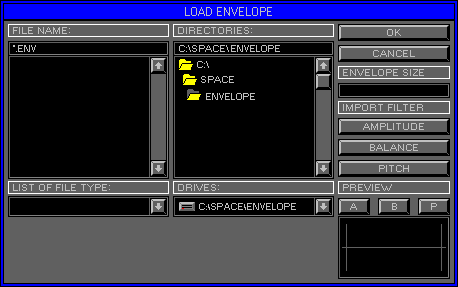
FILE NAME
Displays the currently selected File Name and Type.
FILE LIST
Displays the List of File Names to select from.
Scroll Bar
The size of the Bar is proportional to the displayed File List.
LIST OF FILE TYPE
Displays the current File Type to Load. Click Arrow to activate/deactivate
File Type List.
Click on Type to select (see ENV Files below).
DIRECTORIES
Displays the currently selected Drive and Directory.
DIRECTORY LIST
Display the available Directories. Double click on the Folders to open.
List Scroll
Use the Up/Down Arrows or Scroll Bar to view Directory List.
Scroll Bar
The size of the Bar is proportional to the displayed Directory List.
DRIVES
Displays the currently selected Drive. Click Arrow to view Drive List,
click to select.
OK
Loads Selected File. Click or use Quick Key "Enter".
CANCEL
Exit Load Window and return to the previous Level. Click or use "Back
Space".
ENVELOPE SIZE
Displays number of bytes required to load Selected File.
IMPORT FILTER
Determines which Shapes within the selected Envelope File are Loaded.
Amplitude
Click to include\exclude the Amplitude Shape.
Balance
Click to include\exclude the Balance Shape.
Pitch
Click to include\exclude the Pitch Shape.
EXPORT FILTER
Determines which Shapes within the selected Envelope File are Saved.
Amplitude
Click to include\exclude the Amplitude Shape.
Balance
Click to include\exclude the Balance Shape.
Pitch
Click to include\exclude the Pitch Shape.
PREVIEW
Used to view Shapes.
A
Click to enable\disable Amplitude Shape Previewing.
B
Click to enable\disable Balance Shape Previewing.
P
Click to enable\disable Pitch Shape Previewing.
PREVIEW WINDOW
Displays the selected Preview Shape.