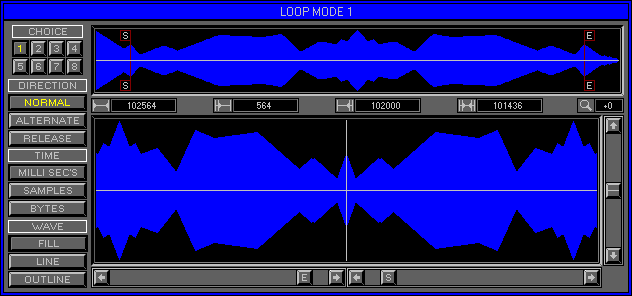
Zone 2, Level 4 (EDIT BANK\LOOP MODE 1)
LEVEL OVERVIEW
Here you can set Start and End points for the Wave to Loop around.
Looping can be in two directions, Forward or Forward\Reverse. Setting Loop
Points prevents Waves from Terminating on Key release to create endless
Sustain Effects. Natural and Synthetic Waveforms have individual characteristics,
experience with different Wave types will aid Glitch Free Loop Point finding,
but generally Auto Looping is quicker (see Zone 2 Level 5 Edit Bank\Auto
Looping).
Key Features
Eight Choices, Directions, Visual Displays, Visual Modes.
CHOICE
Eight Different Loop Point combinations can be used, only the selected
Choice will be stored on Loop Exit.Choices will be kept when Jumping between
Loop Mode 1 and Zone 2 Level 5 Auto Looping, but not when selecting a new
Wave.
Switches 1-8
Generate Start and End Points, click to activate\deactivate.
Remember: All Eight Choice will be copies of the Stored Choice.
DIRECTION
Determines Loop performance.
Normal
Waves Play from beginning to Loop End Point, then jump back to the
Loop Start Point
Cycling indefinitely between Points. Forward Looping.
Alternate
Waves Play form beginning to Loop End Point, then Reverse back to the
Start Point
Cycling indefinitely between Points. Forward\Reverse Looping.
Release
Disables Loop Cycling on Key Release. Waves Play beyond the Loop End
Point Terminating normally,
Reversed Waves immediately return to a Forward direction.
Remember: Terminate Wave Playback before changing Direction.
TIME
Scale used in Time Display Windows.
Milli Sec's
Thousands of seconds.
Samples
Wave Sample Rate.
Bytes
File Size.
WAVE
Method used to Display the Wave.
Fill
Fills the gaps between Samples.
Line
Displays each Sample as vertical lines.
Outline
Displays the maximum Sample values only.
WAVE DISPLAY
Displays the entire Wave plus the Loop Start and End Pointers. Pointers
update during Wave Playback.
Central marker turns red to Display Wave Play Location.
Start Point
Location of Loop Start Point. Left click\drag to move Pointer.
End Point
Location of Loop End Point. Right click\drag to move Pointer.
Remember: Loop Start\End Pointers can not be reversed.
VALUE DISPLAYS
Relate to various Loop Mode 1 Attributes.
Wave Length
Total Wave Time.
Start Point
Time Location of Start Point. Right\left click plus Turbo to up/down
Value.
End Point
Time Location of End Point. Right\left click plus Turbo to up/down
Value.
Loop Size
Total Loop Time.
Zoom
Current Zoom Ratio for Loop Displays. Single right\left click to up\down
Value.
LOOP DISPLAYS
Split screen design displaying before End Point (left) and after Start
Point (right).
Each Display is separated by a vertical grey line which represents
both Loop Pointers.
Using this method the exact Loop transition can be viewed.
Before End Point Display (Left)
Displays the portion of Wave immediately before the Loop End Pointer.
Before Start Point Display (Right)
Displays the portion of Wave immediately after the Loop Start Pointer.
ZOOM BAR
Controls Loop Display Zoom Ratio.
Scroll Mode One
Click Up\Down Arrows to Zoom Scroll.
Scroll Mode Two
Click\drag Zoom Box up\down to Zoom In\Out.
Scroll Mode Three
Click within Scroll Bar Snap Zoom.
SCROLL BARS
Used to move the Loop Pointers in ration with the Zoom status.
Scroll Mode One
Click Left\Right Arrows to Zoom Lock Scroll, click opposite mouse button
to active Scroll Acceleration,
release opposite click to Hold current Scroll Speed.
Scroll Mode Two
Click\drag Pointer Box left\right to move Pointer. This Mode is Not
Zoom Locked.
Scroll Mode Three
Click within Scroll Bar to relocate Pointer. This Mode is not Zoom
Locked.
STEREO DISPLAY
Stereo Waves can be displayed in three Modes. Option appears only when
using Stereo Waves.
B
Left\Right sides Displayed together.
L
Brings Left side to front.
R
Bring Right side to front.
WAVE COLOURS
Left\Right Side are Displayed in different Colours.
Wave (Yellow)
Left Channel Values.
Wave (Blue)
Right Channel Values.
Wave (Green)
Opposite Channel Value to that of the Wave Colour directly above. Mode
B only.
OPTIONS SCREEN
Displays available Jump Gates and Options.
Auto Looping
Activates Zone 2 Level 5 Edit Bank\Auto Looping. Enables Start and
End Points to be Located automatically.
Loop Mode 2
Activates Zone 2 Level 1 Edit Bank\Loop Mode 2. Tempo controlled Looping.
Keep And Exit
Keeps selected Choice and Exits to Zone 2 Level 1 Edit Bank\Wave Assigner.
Cancel
Reverts selected Wave to previous Choice and Exits to previous Zone\Level.