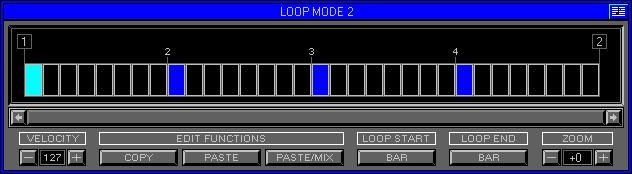
Zone 2 Level 6 (EDIT BANK\LOOP MODE 2)
LEVEL OVERVIEW
Here you can generate a Loop Cell that contains Note On\Off Data to
play the Wave. Cells will be triggered by Note On\Off Data but Looped by
the Sync Source, internal or external. This type of Looping has been designed
for Waves that have a known Tempo or a desired pattern. You can buy Sample
CD's that contain One-Four bar Loops of live performances. Up to now it
has not been possible to Loop this type of Wave in time without a Sequencer,
due to varying Wave lengths. Loop Mode 2 uses Sequencer technic's of re-triggering
the Wave at set Time Points, whilst giving back live control.
Key Features
Bar Selection, Grid Display, Note\Velocity Modes, Velocity, Edit Functions,
Loop Start, Loop End, Zoom.
Remember: Set the desired Time Signature\Tempo (see Keyboard Panel)
then the amount of Bars per Cell
form the Keyboard Options Screen.
NOTE MODE
In this Mode Entries of a Fixed Velocity can be inserted into the Cell,
left click\drag to create or select Entries,
right click\drag to delete. Default Mode.
VELOCITY MODE
In this Mode Entry Velocity can be adjusted easily, left click\drag
to adjust Velocity, right click to create or delete entry.
CELL DISPLAY
Used to display and create Entries within the Cell.
CELL
Divided into Bars, Beats and Segments a Cell will be triggered by a
MIDI Note On, and continue to Loop until receiving a MIDI Note Off. Cells
will not respond to MIDI Velocity, as each Entry within the Cell has its
own.
Remember: Cell Looping will not commence until the Clock is running.
Bar
Displayed by a number within a Line Box.
Beat
Displayed by a number on top of a Line.
Segment
Used to display and create Entries. The amount of Segments per Beat
depends on the
Time Signature selected on Cell creation.
ENTRY
Sends an internal Note On\Off, with a fixed Velocity to play the Attached
Wave. Entry Velocities can be adjusted individually (see Velocity below)
or with Velocity Mode. Entries are displayed by Blue Segments, the brighter
the Blue the grater the Velocity. The selected Entry\Segment is displayed
by a Red highlight. In Velocity Mode each Entry will still be Blue, but
the Level of Velocity will be displayed by filling the Segment Red.
Remember: Loop Mode 2 Waves must not have Sustain Off.
SCROLL BAR
Click Left\Right Arrows to move Cell View. Bar size proportional to
Viewable Cell.
VELOCITY
Value used for new Entries, and the selected Entry.
EDIT FUNCTIONS
Copy
Copies the Cell to the Clipboard.
Paste
Replaces the current Cell with the Clipboard.
Paste Mix
Mixes the current Cell with the Clipboard.
LOOP START
The Time Location at which the Cell will Start after receiving a MIDI
Note On.
Bar
Starts on next Clock Bar.
Beat
Starts on next Clock Beat.
LOOP END
The Time Location at which the Cell will Stop after receiving a MIDI
Note Off.
Bar
Stops on next Clock Bar.
Beat
Stops on next Clock Beat.
Cell
Stops on completion.
Stop
Stops on MIDI Note Off.
Remember: Start\Stop Cells before the desired Wave Play\End Locations.
ZOOM
Current Zoom Ratio for Loop Display. Click +\- Buttons to Zoom In\Out.
OPTION SCREEN
Displays available Options.
Clear Entries
Removes all Cell Entries.
Cancel
Removes Cell and returns to Loop Mode 1.
Keep And Exit
Keeps Cell and Exits to Zone 2 Level 1 Edit Bank\Wave Assigner.
Cancel
Removes Cell and Exits Loop Mode 2 (to original location).