ZONE 2 LEVEL 7 (EDIT BANK\LFO ASSIGNER)
LEVEL OVERVIEW
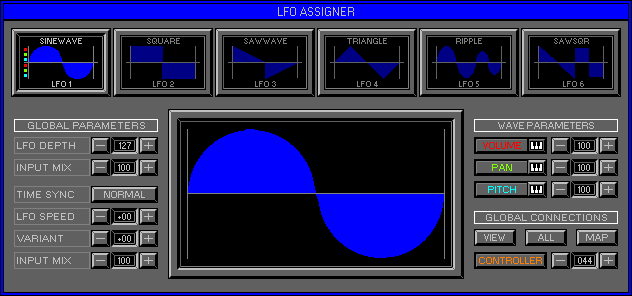
Here you can create controllable Volume, Pan and Pitch Modulation effects
with the use of RAM simulated Low Frequency Oscillators (LFO's). The Space
Station has Six LFO Shapes per Bank, Assignable to any Wave or Controller.
Each LFO has its own Parameters and can be Saved individually, or as a Map.
LFO Shapes can Modulate different aspects of each Wave in varying amounts.
MIDI Controllers can be used for LFO Depth and Time giving hands on control.
Key Features
Loading\Saving, Shape Displays, Global Parameters, Selected Display,
Wave Parameters, Global Connections.
LOAD
Click to activate drop down list.
Load LFO
Activates the Load LFO window (see Load/Save LFO and LFO Files below).
Load LFO Map
Activates the Load LFM window (see Load/Save LFM and LFM Files below).
SAVE
Click to activate drop down list.
Save LFO
Activates the Save LFO window (see Load/Save LFO and LFO Files below).
Save LFO Map
Activates the Save LFM window (see Load/Save LFM and LFM Files below).
SHAPE DISPLAYS
Each display has three Modes.
Mode 1
Out and blank, LFO not Active, right click to Activate.
Mode 2
Out and Shape Dark Blue, LFO Active but not selected, left click to
select.
Mode 3
In and Shape Blue, LFO Active\Selected, right click to Deactivate.
Name
Current LFO File Name.
Shape
Current LFO Shape.
LFO 1-6
Current Active LFO Shapes.
Connections
Inside each Display are Six LED's to indicate LFO Connections, three
Upper and three Lower.
Upper
LFO is connected.
Lower
Selected Wave is connected.
Red
Connected to Volume.
Green
Connected to Pan.
Cyan
Connected to Pitch.
GLOBAL PARAMETERS
Control the selected LFO Shape.
LFO Depth
Sets the Maximum Modulation Value. Click +\- Buttons to up\down the
Value.
No effect will be heard unless the LFO is Connected (see Wave Parameters
below).
Input Mix
Sets the Maximum Depth Cross Modulation Value. Click +\- to up\down
the Value.
Value
Depth Cross Modulation Active (see Zone 2 Level 9 Edit Bank\LFO Mapper).
No Value
Depth Cross Modulation not Active (see Zone 2 Level 9 Edit Bank\LFO
Mapper).
Time Sync
Time base used for LFO cycling.
Normal
Seconds (Free Running) LFO Shapes only Sync to themselves. Use Stop
to restart.
Clock
MIDI clock (Internal/External). LFO Shapes Sync to MIDI Clock.
LFO Speed
Current cycle speed (seconds/Beats)
Variant
Sets the Maximum Time Acceleration Value. Click +\- to Up\Down the
Value.
Value
Time Acceleration Active (see Zone 2 Level 9 Edit Bank\LFO Mapper).
No Value
Time Acceleration not Active (see Zone 2 Level 9 Edit Bank\LFO Mapper).
Input Mix
Sets the Maximum Time Cross Modulation Value. Click +\- to up\down
the Value.
Value
Time Cross Modulation Active (see Zone 2 Level 9 Edit Bank\LFO Mapper).
No Value
Time Cross Modulation not Active (see Zone 2 Level 9 Edit Bank\LFO
Mapper).
LFO DISPLAY
Displays the currently selected LFO Shape to Edit\Connect. Click to
activate Shape Depth and Time Location Displaying. Central\Left side Grey
markers fill Red to identify LFO Cycle and Depth Location.
WAVE PARAMETERS
Connect LFO Shapes to the selected Wave for varying Modulation effects.
Switches
Split into two parts for Attribute assigning, illuminated for Connection
displaying.
Attribute Name (Part One)
Connects the selected LFO for Attribute Modulating, Switches have three
Modes.
Mode 1
Switch Out and Grey, LFO not Connected. Click to Connected selected
LFO.
Mode 2
Switch In and Coloured, selected LFO Connected. Click to Disconnect
LFO.
Mode 3
Switch Out and Coloured, LFO Connected. Click to select Connected LFO.
Key Icon (Part Two)
Assigns MIDI Poly Pressure for Attribute Modulation. Click to activate\deactivate.
Remember: Waves using Poly Pressure do not Modulate until Receiving
Pressure Values for the Assigned Key.
Volume
LFO Shape Modulates Wave Volume for Tremolo\Gate effects.
Value
Click +\- to up\down the Value, larger Values result in greater effects.
Pan
LFO Shape Modulates Wave Pan for Stereo\Shimmer effects.
Value
Click +\- to up\down the Value, larger Values result in greater effects.
Pan settings from the Zone 2 Level 1+3 Edit Bank\Wave Assigner and Envelope
Generator may already be applied and will alter the effect.
Remember: Stereo Waves will fade between Left\Right, they will not swap sides.
Pitch
LFO Shape Modulates Wave Pitch for Vibrato\Chorus effects.
Value
Semitones, click +\- to up\down the Value, larger Values result in
greater effects.
GLOBAL CONNECTIONS
Used for Global Connections, Viewing and Copying Wave Parameters.
View
Views all Waves with identical LFO Connections to the selected Wave,
click\hold to View Connections. Keyboard LED's split into three Colours
to identify which LFO Shapes are Connected to the same Wave Parameters
as the selected Wave.
Red
Volume, Keys with Red LED's use the same LFO Shape as the selected
Wave for Volume Modulation.
Green
Pan, Keys with Green LED's use the same LFO Shape as the selected Wave
for Pan Modulation.
Cyan
Pitch, Keys with Cyan LED's use the same LFO Shape as the selected
Wave for Pitch Modulation.
All
Copies all LFO Connections and Wave Parameters of the selected Wave
to all Waves within the Bank.
Results displayed in the Status Screen.
Map
Copies all LFO Connections and Wave Parameters of the selected Wave,
to all Waves Mapped to the selected Wave. Results displayed in the
Status Screen.
Controller
Enables\Disables the Selected LFO,
outputting to any of the available Internal\External MIDI Controllers.
Value
Controller number, click +\- to up\down the Value.
Remember: LFO's run independent of Wave Playback, to prevent continues Controller output (see LFO Mapper Zone 2 Level 8).
OPTIONS SCREEN
Displays available Jump Gates and Options.
LFO Designer
Activates Zone 2 Level 8 Edit Bank\LFO Designer. Enables LFO Shape
Modelling.
LFO Mapper
Activates Zone 2 Level 9 Edit Bank\LFO Mapper. Enables MIDI Controller
Assigning
and Cross Modulation, Time Acceleration effects.
Keep And Exit
Keeps selected Connections and Exits to Zone 2 Level 1 Wave Assigner.
Cancel
Reverts selected Wave to previous Choice and Exits to previous Zone\Level.
LOAD/SAVE
LFO's can be Loaded\Saved in two types, LFO (*.LFO) and LFO Maps (*.LFM).
LFO FILES
Contain only a single LFO Shape.
LFM FILES
Contain all LFO Shapes and Global Parameters, plus all settings from
Zone 2 Level 9 Edit Bank\LFO Mapper.
Remember: Wave Parameters will not be removed when Loading.
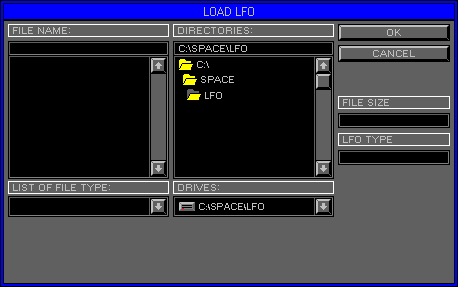
FILE NAME
Displays the currently selected File Name and Type.
FILE LIST
Displays the List of File Names to select from.
LFO
Left click on Shape Name in File List to select. Click OK or use Quick
Key "Return" to Load Shape to the selected LFO.
LFM
Left click on LFO Map Name in File List to select. Click OK or use
Quick Key "Return" to Load LFM to the selected Bank.
Scroll Bar
The size of the Bar is proportional to the displayed File List.
LIST OF FILE TYPE
Displays the current File Type to Load, click Arrow to activate/deactivate
File Type List.
Click on Type to select (see LFO\LFM Files bellow).
DIRECTORIES
Displays the currently selected Drive and Directory.
DIRECTORY LIST
Displays the available Directories. Double click on the Folders to
open.
List Scroll
Use the Up/Down Arrows or Scroll Bar to view Directory List.
Scroll Bar
The size of the Bar is proportional to the displayed Directory List.
DRIVES
Displays the currently selected Drive. Click Arrow to view Drive List,
click to select.
OK
Loads Selected File. Click or use Quick Key "Enter".
CANCEL
Exit Load Window and return to the previous Level. Click or use "Back
Space".
FILE SIZE
Displays number of bytes required to load Selected File.
LFO TYPE
Displays LFO information.
PREVIEW
Activates the Preview Windows for Shape displaying (*.LFO only).
LFO FILES LFO's (*.LFO)
Shapes are stored on the CD within the LFO Directory.
LFO Maps (*.LFM)
All Default LFO Map Attributes can be replaced with User settings.
Save the User LFO Map to the Space Directory as Default.LFM. Delete the
Default.LFM to return to original settings.