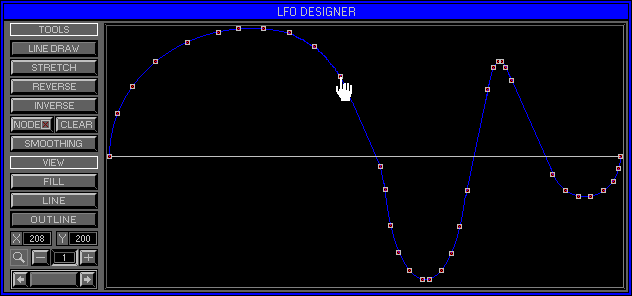
Zone 2 Level 8 (EDIT BANK\LFO DESIGNER)
LEVEL OVERVIEW
Here you can Model LFO Shapes with the use of several Tools. Modeling
is possible during Wave Playback making the Space Station the first Real
Time LFO Designer ever. LFO cycle position is displayed precisely when
active. Two Modelling Modes are available, Free Hand or Node. Shapes can
be Loaded\Saved.
Key features
Shape Displaying, Free Hand Modeling, Tools, View Controls, Load\Save.
LOAD
Click to activate drop down list.
Load LFO
Activates the Load LFO window (see Load/Save Zone 2 Level 7 LFO Assigner).
Load LFO Map
Activates the Load LFM window (see Load/Save Zone 2 Level 7 LFO Assigner).
SAVE
Click to activate drop down list.
Save LFO
Activates the Save LFO window (see Load/Save Zone 2 Level 7 LFO Assigner).
Save LFO Map
Activates the Save LFM window (see Load/Save Zone 2 Level 7 LFO Assigner).
LFO DESIGN SCREEN
Displays the currently selected LFO Shape for Modelling.
MODELLING
Shape Modelling can be achieved using various Tools within one of two
Modes.
Free Hand Mode (Default)
Modelling with the Mouse Pointer.
Node Mode
Up to 100 Nodes can be placed at points within the Shape and used to
Model parts
between the selected Node and Nodes immediately to the left\right.
TOOLS
Used for Modelling techniques, some Tools work differently within each
Mode.
Line Draw (Default)
Used for Shape Drawing, Functions differently for each Mode.
Free Hand Mode
Mouse Pointer becomes a Cross Hair, Left click\drag to Model LFO Shape.
Node Mode
Mouse Pointer becomes a Hand when over a Node, right click along Shape
Time to Create Node, left click\drag Node to Rubber Band all Shape parts
between the selected Node and Nodes immediately to the left\right. Right
click Node to Delete.
Stretch
Used to Shrink\Expand Shapes, Functions differently for each Mode.
Free Hand Mode
Mouse Pointer becomes a Cross Arrow, left click\drag, left\right to
Shrink or Expand LFO Shape Time from the Pointer Position. Right click\drag
up\down to Shrink or Expand LFO Shape Depth.
Node Mode
Mouse Pointer becomes a Cross Arrow. Create\Delete Node as with Line
Draw. left click\drag Node,
left\right to Shrink or Expand all Shape parts between the selected
Node and Nodes immediately to the left\right.
Reverse
Rotates the LFO Shape about the Depth Axis.
Inverse
Rotates the LFO Shape about the Time Axis.
Node
Switches between Node Mode and Free Hand Mode.
Switch Up
Free Hand Mode.
Switch Down
Node Mode.
Clear
Removes all User Nodes.
Smoothing
Automatically Smooths Shape Edges. Continuous use will Flat
Line the Shape.
VIEW
Defines how the LFO Shape is Displayed, and the location of the Modelling
Tool.
Fill
Fills the gaps between Bytes.
Line
Displays each Byte as vertical lines.
Outline
Displays the maximum Byte values only.
X Screen
Displays the Mouse Pointer X Value (LFO Time).
Y Screen
Displays the Mouse Pointer Y Value (LFO Depth).
Zoom
Click +\- Buttons to Zoom In\Out.
Scroll Bar
Click Left\Right Arrows to Time Scroll, Bar size proportional to Shape
displayed.
OPTION SCREEN
Displays available Options.
Hold
Stores all current settings to disk, use with Fetch for undo.
Fetch
Reverts to previously Held settings.
Keep and Exit
Keeps Shape Design and Exits to Zone 2 Level 7 Edit Bank\LFO Assigner.
Cancel
Removes all Modelling and returns to the previous Zone\Level.