LOAD
Click to activate drop down list.
Load Wave
Activates the Load Wave window (see Load Waves and Wave Files below).
Clear Wave
Removes the selected Wave.
Zone 3, Level 1 (EDIT WAVE\WAVE EDITOR)
LEVEL OVERVIEW
Here you can Edit Waves in a destructive manner with the use of several
different Tools.
Sections or all of the selected Wave can be can be Played, Copied and
Pasted to different Keys.
Adjustments to Wave Volume can be made using Fade, Amplify and Maximise
Tools.
Sections of silence can be added or forced into the Wave accurately
using special Viewing Tools.
Waves can be Loaded and Saved.
Key Features
Wave Displays, Time Displays, Multi Point Playing, Selecting, Zooming,
Deleting, Amending, Cut, Copy, Paste, Paste Mix, Fade In/Out, Insert Silence,
Force Silence, Amplify, Maximise, Top and Tail, View Settings, Load/Save.
LOAD
Click to activate drop down list.
Load Wave
Activates the Load Wave window (see Load Waves and Wave Files below).
Clear Wave
Removes the selected Wave.
SAVE
Click to activate drop down list.
Save Wave
Activates the Save Wave window (see Save and Wave Files below).
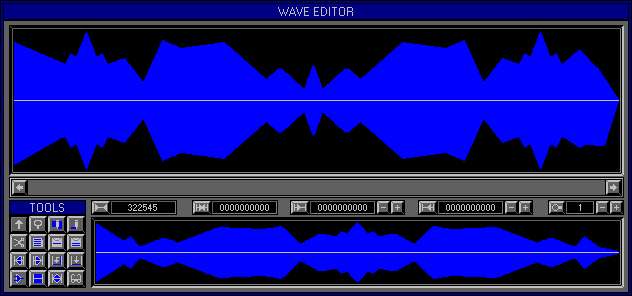
WAVE DISPLAY
Displays the currently selected Wave File for Editing, all Tools will
be used within this Display (see Tools below).
Remember: A Wave must be selected for Viewing and Editing.
Scroll Bar
Used to Manoeuvre around Waves, click Arrows or click\drag Bar to move.
The Bar size is always proportional to the amount Wave Displayed.
TOOLS
Sixteen different Tools are available for making amendments to the
selected Wave. Tool names,
functions and operations are displayed in the Status Screen when Hovering
over the Tool Icon.
Select
Used to Select areas of the Wave for amending with other Tools, left
click\drag to Select Wave area or double click to Select all. Left click\drag
again to move left side of selected area, or right click\drag to move the
right side of the selected area.
To reset the Selected area, left click the Select Tool Icon.
Magnify
Used to Zoom In/Out on Mouse Pointer position, right/left click to
Zoom In/Out.
Delete
Click to Delete Selected area.
Draw
Used for free hand editing, click\drag to redraw Wave Levels. Use this
Tool to remove small glitches within a Wave,
excessive use will create audio glitching.
Cut
Removes the Selected area of Wave to the clip board, used with Paste/Paste
Mix.
Copy
Copies the Selected area of Wave to the clip board, used with Paste/Paste
Mix.
Paste
Inserts any Wave data on the clip board into the selected Wave, starting
form the left side of the Selected area.
Paste Mix
Mixes any data on the clip board with the selected Wave, starting from
the left side of the Selected area. Mixing Waves together increases Gain
levels, beware distortion.
Fade In
Generates smooth Volume increment effects within the Selected area.
Activating the Fade In Tool will generate a Path from the bottom of
the Wave to the Top, in the centre of this Path will be a Node Point. Click\drag
the Node around to generate a curved Path, to apply the effect right click
on the Fade In Tool Icon. To reset the Path left click the Fade In Tool
Icon.
Fade Out
Generates smooth Volume decrement effects within the Selected area.
Activating the Fade Out Tool will generate a Path from the top of the
Wave to the bottom, in the centre of this Path will be a Node Point. Click\drag
the Node around to generate a curved Path, to apply the effect right click
on the Fade Out Tool Icon. To reset the Path left click the Fade Out Tool
Icon.
Insert Silence
Inserts a section of Silence within the current Wave, starting from
the left side of the Selected area. The amount of Inserted Silence is equal
to the Selected area.
Force Silence
Replaces all Wave data within the Selected area with Silence.
Amplify
Generates smooth Volume increment\decrement effects within the Selected
area. Activating the Amplify Tool will generate a Path from one side of
the Selected area to the other. At each end of the Path is a Node, left
click\drag Node up\down to increase\decrease Wave Volume. Right click along
the Path to generate another Node, up to 99 Nodes can be used to generate
complex Amplification effects. To apply the effect right click on the Amplify
Tool Icon or Left click to reset the Path.
Maximise
Increases the Volume of all Wave data within the Selected area,
by the maximum amount possible without introducing distortion.
Top & Tail
Removes the start and end of the current Wave. Left click on the Wave
to remove the section to the left, right click on the Wave to remove the
section to the right. The Top & Tail Tool uses the closest Zero Crossover
Point for a cut location, preventing start or end glitching, (for more
on Zero Crossover Points see Zone 2 Level 5 Auto Looping).
View
Activates the View Settings Window, (see View Settings below).
VIEW SETTINGS
Multi panelled window used to set Display criteria.
WAVE
Determines how the Wave is Displayed.
Wave
Click to activate full screen Wave viewing, positive and negative peaks.
-
Click to activate full screen negative viewing.
+
Click to activate full screen positive Wave viewing.
Loop Points
Click to view Wave Loop Points, only available when Loop Points have
been set
(see Zone 2 Level 4 Edit Bank\Loop Mode 1).
Stereo
Activates left and right Wave side viewing and Editing, only available
for Stereo Waves.
L
Brings the left Wave Side to front, for viewing and Editing independently.
R
Brings the right Wave side to front, for viewing and Editing independently.
TIME
Determines the Time scale used by the Value Displays.
SEC
Time scale in Seconds.
SPS
Time scale in Samples.
BYT
Time scale in Bytes.
SMPTE 24, 25, 30
Time scale in SMPTE, 24, 25 or 30 Frames per second.
MIDI
Time scale in MIDI, Bars and Beats.
GRID
Determines the Grid Settings.
Time
Activates\deactivates the Time Grid.
1 - 4
Activate the four possible Grid resolutions for each Time Scale.
Sec
Seconds, 1/4 Seconds, 1/10 Seconds and 1/20 Seconds.
Sps
1000 Samples, 250 Samples, 100 Samples and 10 Samples.
Byt
1000 Bytes, 250 Bytes, 100 Bytes and 10 Bytes.
SMPTE 24 & 30 Frames
Seconds, 2 Frames, 1 Frame and ½ Frame.
SMPTE 25 Frames
Seconds, 5 Frames, 1 Frame and ½ Frame.
MIDI
Beat, 1/8 Beat, 1/16 Beat and 1/32 Beat.
Depth
Activates\deactivates the Depth Grid.
1 - 4
Activate the four possible Grid resolutions, ½, 1/4, 1/8 and
1/16.
Snap
Enables the mouse pointer to lock to Grid points only.
VALUE DISPLAYS
Display Time Values relating to the Wave areas. Display Icons have
special functions.
Wave Time Icon
Click to Loop Play Wave from start to end, click again to stop.
Wave Time Display
Total Wave Time, (see View Settings\Time above).
Total Selected Area Icon
Click to Loop Play Wave from Selected Area start, to Selected Area
end, click again to stop.
Total Selected Area Display
Total Time of the Selected Area, (see View Settings\Time above).
Left Selected Area Icon
Click to Loop Play from Wave start to Selected Area start, click to
stop.
Left Selected Area Display
Left side Time Location of the of the Selected Area, click +\- to Up\Down
the Value.
Right Selected Area Icon
Click to Loop Play from Selected Area end to Wave end, click to stop.
Right Selected Area Display
Right side Time Location of the of the Selected Area, click +\- to
Up\Down the Value..
Zoom Icon
Click to Auto Zoom in, to the Selected Area, click again to return.
Zoom Display
Displays the current Magnification Level, click +\- to Up\Down the
Value.
OVER VIEW
Displays the entire Wave and the Selected Area, and can be used for
Selecting.
OPTION SCREEN
Displays available Options.
Hold
Stores all current settings to disk, use with Fetch for undo.
Fetch
Reverts to previously Held settings.
Effects Rack
Activates Zone 3 Level 2, Edit Wave\Effects Rack, used for applying
special Effects like Echo,
Reverb, Flanging, Chorus and Distortion (Function currently under construction).
Processor Rack
Activates Zone 3 Level 3, Edit Wave\Processor Rack, used for applying
special Processes like Filters,
EQ and much more (Function currently under construction).
SAVE WAVE
See Load\Save Desktop (no special functions).
WAVE FILES
Wave Files (*.WAV) are the standard PC Audio File Type.