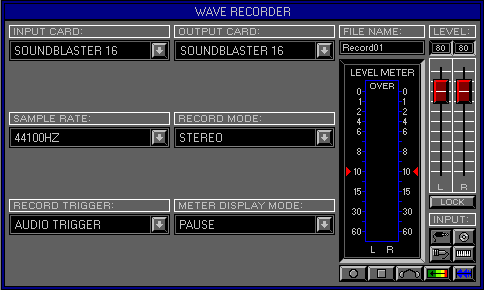
Zone 3, Level 5 (EDIT WAVE\WAVE RECORDER)
LEVEL OVERVIEW Here you can Record Waves to the Selected Key,
using any of the Sound Blaster Inputs.
Waves can be Recorded in Mono or Stereo, and at one of three different
Sample Rates.
Wave Recording can be Triggered from four different ways including
MIDI. Input Levels can be accurately adjusted and Displayed in three different
Meter Modes. Waves can be Saved to disk.
Key Features
Input Output Card, Sample Rate, Record Mode, Record Trigger, Meter
Display Mode,
File Name, Level Meter, Level Control, Input Control.
SAVE
Click to activate drop down list.
Save Wave
Activates the Save Wave window (see Save and Wave Files below).
INPUT CARD
Displays the currently selected Sound Blaster Card, used for Wave Recording.
OUTPUT CARD
Displays the currently selected Sound Blaster Card, used for Wave Output.
Remember: The Space Station only supports one Sound Card at present, Wave Recording disables the Playback Engine. Function under construction.
SAMPLE RATE
Defines the Record quality. All sounds contain a range of frequencies
that need to be Recorded to ensure an accurate reproduction. The rule of
thumb is to double the frequency value of the sound to be Recorded and
select the closest Sample Rate. For information on different sounds and
their frequencies (See Frequency Chart below)
Remember: More Memory is used, the grater the Sample Rater.
44100HZ
CD quality, used for Recording several instruments together.
22050HZ
Instrument quality, used for Recording individual performances.
11025HZ
Speech quality, used for spoken words and low frequency sounds.
RECORD MODE
Defines wich of the Sound Blaster Card Inputs are to be used for Recording.
Mono
Left and Right Inputs are mixed together.
Stereo
Left and Right Inputs are Recorded independently.
Mono Left
Only the Left Input is Recorded.
Mono Right
Only the Right Input is Recorded.
RECORD TRIGGER
Defines how the Space Station should start Recording.
Normal
Activate/deactivate Recording by using the Record and Stop Buttons,
or the Keyboard Options Screen (see Input\Record, Stop and Option Screen
below).
Audio Level
Recording commences when the Input Level exceed's a user definable
Trigger Point
(see Level Meter\Audio Trigger below). Activate/deactivate as Normal.
Mouse
Recording is activated by a left click\hold on the Record Button (see
below), and deactivated by a release click.
MIDI Clock
Recoding commences when the MIDI Clock current time location equals
the Left Locator position,
and stops at the Right Locator position (see Left and Right Locators
Zone 0 Level 1 Keyboard Panel\Flip Screen).
To select this Mode both Locators must be set, and Punch In\Out must
be on (see Flip Screen).
Activate Recording with the Record Button.
METER DISPLAY
Defines how the Level Meter should respond, three Modes are available.
Normal
Meter Levels are always equal to the Input signal.
Pause
Meter Levels are always equal to the Input signal, but the maximum
Meter Level is held momentarily.
Hold
Meter Levels are always equal to the Input signal, but the maximum
Meter Level is always held.
FILE NAME
Wave File Name to be Recorded, click to activate text insertion.
LEVEL METER
Displays the Input signal's Level with the use of a multi coloured
bar graph.
The Level Meter will not Display unless Monitor is active (see Input
below).
Green
-60db to -10db
Light Green
-10db to -4db
Yellow
-4db to -1db
Orange
-1db to 0db
Over
Flashes Red when the Input signal exceeds 0db.
Remember: Digital Audio signals clip at Levels above 0db.
Audio Trigger
Two Red triangles left/right of the bar graph, used in conjunction
with the Record Trigger (see Audio Level above), click\drag to desired
Level to set Threshold.
Threshold
Audio Levels above the Threshold Value will activate Recording.
LEVEL
Defines the Input signals Level.
Value Screens
Display the Left and Right Input Values.
Faders
Increase/decrease the Left and Right Input Levels, click\drag Fader
up/down.
Lock
Synchronises Faders ensuring a stereo match.
INPUT
Selects between the four available Sound Blaster Inputs.
Line Input
Sound Blaster External Jack Input, Faders Red.
CD Input
Sound Blaster Internal CD Input, Faders Blue.
Microphone Input
Sound Blaster External Mic Input, Faders Green.
Keyboard
Sound Blaster OPL3 Synth or AWE Wave Table Input, Fader Purple.
Record
Activates Wave Recording (see Sample Rate, Record Mode and Trigger
above).
Stop
Deactivates Wave Recording (see Record Trigger above).
Monitor
Activates the Record Monitor and Level Meter, disabling Wave Playback.
Meter Reset
Used to reset the Meter Display.
Output Record
Space Station Output Record mode, Faders Orange.
This mode enables new Waves to be created from any Waves that are playing
back.
Record Frequency is set by the current Output Settings.
OPTIONS SCREEN
Displays available Options.
Record
Activates Wave Recording, Option changes to Stop after selecting.
Discard Wave
Clears the Recorded Wave from Memory.
Keep + Exit
Keeps Wave and Exits to Zone 3 Level 1 Edit Wave\Wave Editor
Cancel
Removes the currently selected Wave and Exits to previous Zone\Level.
SAVE WAVE
See Load\Save Desktop (no special functions).
WAVE FILES
Wave Files (*.WAV) are the standard PC Audio File Type.