LOAD
Click to activate drop down list.
Load User Mixer
Activates the Load User Mixer window (see Load/Save and Mixer Files below).
Zone 5, Level 2 (MIXER\USER MIXER)
LEVEL OVERVIEW
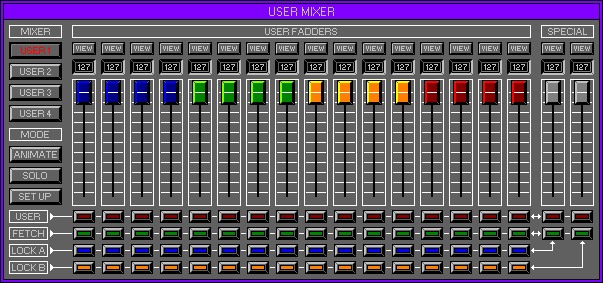
Here you can adjust the sixteen different User Faders and Switches,
to Output different types of MIDI Data.
Channels can be locked together to enable multi Fader adjustments,
Animation Mode for on screen movement.
Load and save to importing and exporting different User Mixer types.
Key Features
Customized Faders and Switches, Individual Channel adjustment, Animation,
Fetching and Locking,
Fader information displayed on Hovering, Load\Save.
LOAD
Click to activate drop down list.
Load User Mixer
Activates the Load User Mixer window (see Load/Save and Mixer Files
below).
SAVE
Click to activate drop down list.
Save User Mixer
Activates the Save User Mixer window (see Load/Save and Mixer
Files below).
MIXER
Switches between the four available User Mixers.
User 1 (Default1.mix)
Sixteen User Faders and Switches.
User 2 (Default2.mix)
Sixteen User Faders and Switches.
User 3 (Default3.mix)
Sixteen User Faders and Switches.
User 4 (Default4.mix)
Sixteen User Faders and Switches.
CHANNEL
Each of the sixteen possible Channels within the User Mixer have been
allocated with a View Button,
Current Value Screen, Fader and four Fixed Switches.
View Button
Activates the View Settings Window.
View Settings
Displays the User Name and Attributes, for the Fader and Switch. To
edit the User Name,
click the Fader or Switch Button and input text.
Current Value Screen
Displays the Value for each Channel at all times, reflecting all MIDI
changes.
Fader
Left click\drag, up/down to change current Value. Fader Values will
be transmitted internally and externally to adjust MIDI Channels. Hover
over Fader to display User attributes in the Status Screen.
Remember: The type of Data and MIDI Channel sent, depends on the attributes assigned to the User Fader. Faders can be one of two types, Latching and non Latching (see Mixer Designer Zone 5 Level 3 Mixer\Mixer Designer).
Switches
Each Channel has One User Switch which functions differently to the
Main Mixer and three Fixed switches,
each of which works as before.
User
Toggle on\off to transmit User MIDI Data internally or externally.
Hover over Switch to display User attributes in the Status Screen.
Remember: The type of Data and MIDI Channel sent, depends on the attributes assigned to the User Switch. Switches can be one of two types, Latching and non Latching (see Mixer Designer Zone 5 Level 3 Mixer\Mixer Designer).
Fetch
Recalls the current Channels last Held position.
Lock A
Locks the current Channel to Special A for Multi Fader movement (See
below).
Lock B
Locks the current Channel to Special B for Multi Fader movement (See
below).
SPECIAL
Channels A and B have been designed to adjust all Locked Faders.
Current Value Screen
Displays the current Value for each Special Channel.
Fader
Special Faders react slightly differently from the Channel Faders,
enabling the movement of different Channel Values,
click Fader and drag up/down to move all Locked Channels. Special Faders
may reach their maximum/minimum Value,
whilst the Locked Faders have not reached theirs. To enable more Fader
movement simply release click,
and click again any were within the Special Faders path but not on
the Fader itself.
This will define the Special Faders new position without moving any
of the Locked Channels,
with the exception of Non Latching Faders that will snap back to a
default position (see Mixer Designer).
Moving the Special Fader as before will give more movement to Latching
Faders, but accelerates Non Latching.
Remember: Faders can have different Values, the offsets between these Values will be retained even after all of the Channels have been maximised\minimised.
Switches
Each Special Channel has two Switches.
User
Activates all Locked Channel User Switches.
Fetch
Recalls the last Held positions of all Locked Channels.
MODE
Animate
Fader Animation displays all MIDI Value changes. Faders can still be
used to transmit Data as before,
but during user movement all Animation stops.
Remember: Only MIDI Data used Internally will Animate.
Solo
Mutes the Volumes of all MIDI Channels with the exception of the selected
Bank.
This will enable the ability to monitor the currently selected Channel
only.
Setup
Activates the Joystick port Calibration Screen for use with the Hypnosis
Studio external Mixer controller.
Function currently not available.
OPTIONS SCREEN
Displays available Options.
Hold
Stores all current settings to disk, use with Fetch for undo.
Fetch
Reverts to previously Held settings.
Main Mixer
Activates the Main Mixer (Zone 5 Level 1 Mixer\Main Mixer).
Mixer Designer
Activates the Mixer Designer (Zone 5 Level 3 Mixer\Mixer Designer).
LOAD/SAVE
See Load/Save Desktop (no special functions).
MIXER FILES
Contain all Data and Settings from Zone 5 Levels 2 and 3.