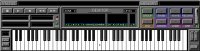
The Space Stations interface
and layout, has been designed to react and feel like a conventional MIDI
Keyboard. The Virtual Sampler Keyboard Panel is always displayed, and is
used to activate functional areas within the software known as Levels.
Up to sixteen different instruments can be assigned and played back at
any time, using the appropriate MIDI Channel. Channel and Timing data can
be increased or decreased using the Keyboards Switches and Screens. All
128 MIDI notes can be played form the Virtual Keys, triggering internal
or external sounds.

|
|

|
|
Top
|
|
Continue
|
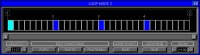
Conventional samplers
only Loop around user definable points, limiting their live performance.
The Space Station has two Modes of Looping, designed for different
types of Waves and effects.
Loop Mode
1
User definable Start and
End Points are placed within the Wave and used to Loop around, in a forward
or forward then reverse motion, as with conventional methods. This type
of Looping is used to create endless sustain effects.
Loop Mode
2
When Looping Waves of
a known Tempo and Bar length, using conventional methods will result in
a timing mismatch, unless extreme accuracy is used when creating Loop Points.
Generally this type of Wave would be triggered by a Sequencer at the beginning
of a Bar or Beat, removing all live performance. The Space Stations Loop
Mode 2, generates Cells that are triggered by MIDI Note's. Cells contain
trigger patterns that play the assigned Wave, and Loop around the internal
or external MIDI Clock. This type of Looping is used to enable musicians,
to regain live control of Tempo dictated music, for their self's or in
sync with others.
|
|
|
|
|
Top
|
|
Continue
|
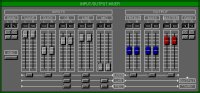
Sound Blaster Cards have
an on board Mixer for adjusting the five different Input device Levels.
This Mixer also has an Output stage with control's for Bass, Treble
and Master Volume. Use this Mixer to match the Gain Levels of the Sound
Blaster Card with the Input/Output Device. Correct Level matching
results in cleaner Recording and Play back, all Values can be stored
as default.
|
|
|
|
|
Top
|
|
Continue
|
Envelope
History
Since the invention of
the first ever tone generator, Envelopes have been used to craft sound.
The first Envelope Generators had values only for Attack Time, Decay Time,
Sustain Level and Release Time (A,D,S,R). As analogue synth's got bigger
and better, Envelope Generator's did not. Instead more A,D,S,R's were made
available for shaping each of the sound elements. When digital synth’s
came on to the market, Envelope Generators began to change. First by giving
Time and Level Values for each of the four Points, with MIDI control of
Attack and release. Then by giving access to six Points, ten Points and
even one Envelope for Key On and another for Key Off, what could come next?
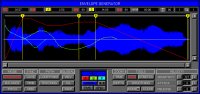
The Space
Station
Envelope Shapes can Be
Modelled with the mouse pointer, creating as many Points as desired in
real time, whilst the Wave is Playing. Attack and Release Points are MIDI
controllable and can be placed at any point with the Shape. Any known Envelope
Generator can be emulated with the use of Sustain and Loop Points. All
Envelope Shape's can be displayed together with the Wave and a Time/Depth
Grid. Different Time Scales can be used for accurate Modelling. Shapes
can be synced to Time, Wave or even MIDI. Shapes can be Modelled with a
range of specially designed Tools within two different Modes (Free Hand
and Node), and Saved.
|
|
|
|
|
Top
|
|
Continue
|
LFO History
Since the invention of
the first synthesizer Low Frequency Oscillators (LFO's), have been used
to add natural and violent Modulation effects to sounds. A typical use
for an LFO is to emulate natural vibrato and tremolo by Modulating Pitch
or Volume. Analogue and early Digital synth's only had access to several
LFO Shapes (Sin, Square, Triangle, Saw and Random), becoming the norm.
On most synth's LFO Depth, and on some Time can be adjusted with MIDI Controllers.
With newer synth's LFO Shapes can be used to Modulate the Depth or Time
of another.
The Space
Station
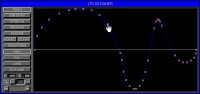
Up to six different LFO
Shapes can be used per Instrument, these Shapes can be one of the default's
or Loaded from the library supplied. Shapes can be used to Modulate Waves
or other LFO's Depth or Time. MIDI Controllers, Poly Pressure, After Touch
or Pitch Bend can be used to control LFO Depth and Time. Shapes can be
synced to Real Time or MIDI and display their current Depth and Time positions's.
Shapes can be Modelled in real Time using a range of specially designed
Tools within two different Modes (Free Hand or Node), using the LFO Designer.
All Designed Shapes can be saved to Disk.
|
|
|
|
|
Top
|
|
Continue
|
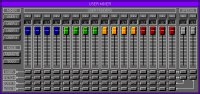
The Space Station has two
types of on board virtual Mixers for transmitting different forms of MIDI
Data, the Main Mixer and the User Mixer.
Main Mixer
Within the Main Mixer
there are four different virtual Mixer's, one for Volume, Pan and
Amplitude Envelope Attack and Release Times. Each of these contain sixteen
arrays of Faders and Switches, one for each MIDI Channel.
User Mixer
Within the User Mixer
there are four different virtual Mixer's, each of which has sixteen user
definable MIDI Faders and Switches that are capable of transmitting any
form of MIDI Data on any Channel. User Mixer's can be Loaded from the library
supplied on disk or Designed using the Mixer Designer and Saved.
|
|
|
|
|
Top
|
|
Continue
|
As with standard studio
equipment the Space Station uses Function Buttons to activate areas within
the software known as Zones. Each of these Zones is colour coded and contains
several different sub areas known as Levels. Level's are accessed
by using the standard method of paging form one Level to the next within
an active Zone, just like directory tree's. There is how ever a draw back
with this type of interface, in that moving from the last Level of a
Zone, to last of another, becomes very tedious. The standard improvement
adopted by software developers, is to use drop down list's that drop down
other list's and so on, surely to improve things, things must become quicker
and more accessible.
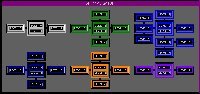
Ship Navigator
The least amount of clicks
has become the Space Station developers guide, and due to this the Navigator
was designed. Every Level within the software can be viewed together in
a simple map style layout using one click. Current location is displayed
by a red highlight, and any Level can be Jumped to using one click. Up
to four of these Jumps can be stored and activated using Quick Keys.
Help Navigator
When Help is needed and
its bad enough to actually read some thing, then and only then do
you actually experience the endless cycle of nonsense, commonly known
as Help Files. The Space Stations Help Navigator will only give access
to files relating to the active Level. All of Function Headings and
the individual Functions within each Level can be listed by using
the Search Navigator. All of the Help Files have been written by
the Interface Design Manager, if your experience difficulty using
any part of the Space Station do not hesitate to Email.
|
|
|
|
|
Top
|
|
Continue
|
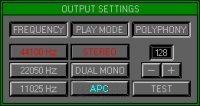
At the heart of the Space
Station is the Sound Engine, designed to give precision performance. By
using the on board Test routine the Sound Engine will model its self around
the capabilities of your PC, automatically calculating the best possible
Output Frequency and Polyphony. The Space Station is not like any other
Wave play back device on the market, it will out perform any known hard
disk recorder. The Polyphony Value is the true amount of Waves playable
at any one time even if they are ten minuets long. The Sound Engine has
be designed to allocate up to 4096 Stereo Wave Files, to a total of 3.5Gb
of RAM, The only limitation to Wave size is the available memory. The Output
Frequency can be changed in Real Time, without effecting the play back
speed of any Waves Loaded. The Sound Engine takes into account that you
will be editing Waves in real time, there for it is possible to increase
the Polyphony Value for Live performance.
|
|
|
Top
|